Creating and Running Apps Across Mobile, Web & Desktop
One Flutter project can open as an Android activity, an iOS application, a browser application, or a desktop window. That does not mean one prebuilt binary runs everywhere.
The useful mental model is:
One Dart application is compiled into a target-specific build and launched by that platform’s host runner.
In this chapter, you will create the Reading Companion project, replace its entry point with one adaptive screen, discover available targets, and run the same source on more than one platform. Project anatomy belongs to Chapter 3; the hot-reload and debugging loop belongs to Chapter 4.
Version boundary: The commands and sample were verified with Flutter 3.47.1 stable and Dart 3.13.1.
1. Create an Application Project
Move to a directory where you keep source projects, then run:
flutter create --empty reading_companion
cd reading_companion
flutter create does more than create main.dart. For an application template, it creates a Dart package plus host projects for enabled platforms. The --empty option selects a minimal starter application instead of the counter example.
The name uses lowercase_with_underscores because it becomes a Dart package name. For a real product, set the organization identifier before platform identifiers become expensive to change:
flutter create \
  --empty \
  --org com.example.reading \
  reading_companion
Replace com.example.reading with an identifier your organization controls. The value contributes to identifiers such as the Android package namespace and Apple bundle identifier; it is not the user-facing app name.
Create only selected platform folders
If the first delivery scope is Android, iOS, and web, you can make that boundary explicit:
flutter create \
  --empty \
  --platforms=android,ios,web \
  reading_companion
You can add a missing platform later from the project root:
flutter create . --platforms=macosThis command regenerates the platform scaffold. Review the resulting changes before committing them, especially when a host project already contains manual native configuration.
Decision rule: include the platforms you intend to test and support. A generated folder is not proof that the application behaves correctly on that platform.
2. One Project, Several Host Runners
A new application commonly includes a structure like this:
reading_companion/
├── lib/
│   └── main.dart       ← shared Dart entry point
├── android/            ← Android host project
├── ios/                ← iOS host project
├── web/                ← browser bootstrap files
├── macos/              ← macOS host project
├── windows/            ← Windows host project
├── linux/              ← Linux host project
├── test/
└── pubspec.yaml
The exact folders depend on the selected platforms and host configuration. Chapter 3 explains the ownership rules for each directory. For now, keep two facts separate:
lib/main.dartcontains the shared application entry point.- Each platform folder contains the host-specific bootstrap and build configuration needed to launch that Dart application.
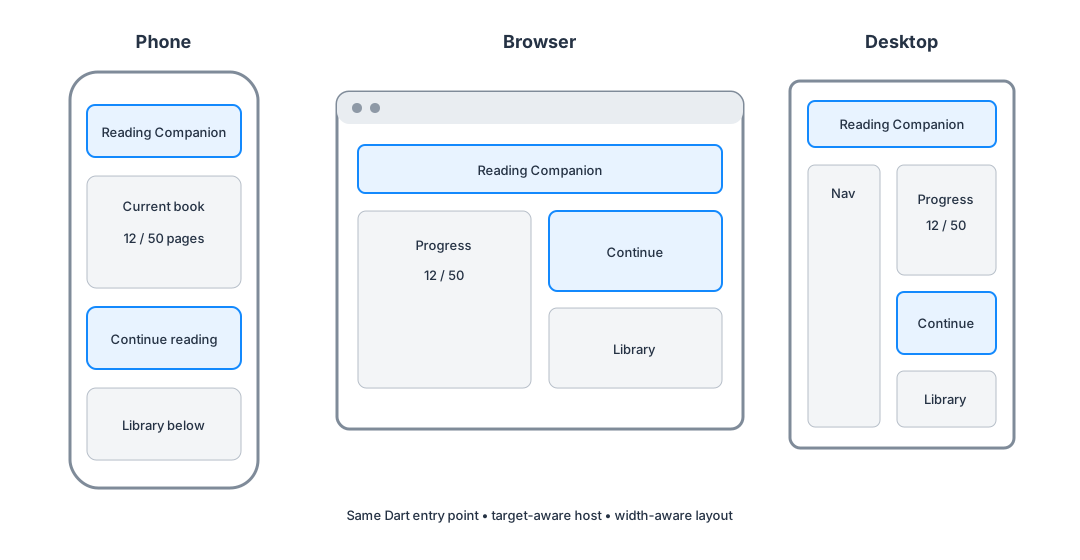
Figure 1 — Shared source does not require identical layout: the narrow target stacks content while wider targets use available horizontal space.
The Flutter tool selects a platform runner, invokes its toolchain, bundles the Flutter engine and application as appropriate for that target, and starts the result. You still maintain one feature model, but you produce target-specific artifacts.
3. Build the Adaptive Reading Companion Shell
Replace lib/main.dart with this complete program:
import 'package:flutter/material.dart';

void main() {
  runApp(const ReadingCompanionApp());
}

class ReadingCompanionApp extends StatelessWidget {
  const ReadingCompanionApp({super.key});

  @override
  Widget build(BuildContext context) {
    return MaterialApp(
      debugShowCheckedModeBanner: false,
      title: 'Reading Companion',
      theme: ThemeData(
        colorSchemeSeed: Colors.blue,
        useMaterial3: true,
      ),
      home: const ReadingHomePage(),
    );
  }
}

class ReadingHomePage extends StatelessWidget {
  const ReadingHomePage({super.key});

  @override
  Widget build(BuildContext context) {
    return Scaffold(
      appBar: AppBar(title: const Text('Reading Companion')),
      body: const SafeArea(
        child: Padding(
          padding: EdgeInsets.all(24),
          child: _ReadingDashboard(),
        ),
      ),
    );
  }
}

class _ReadingDashboard extends StatelessWidget {
  const _ReadingDashboard();

  @override
  Widget build(BuildContext context) {
    return LayoutBuilder(
      builder: (context, constraints) {
        final isWide = constraints.maxWidth >= 720;

        if (isWide) {
          return const Row(
            crossAxisAlignment: CrossAxisAlignment.start,
            children: [
              Expanded(child: _ProgressCard()),
              SizedBox(width: 24),
              Expanded(child: _LibraryCard()),
            ],
          );
        }

        return ListView(
          children: const [
            _ProgressCard(),
            SizedBox(height: 16),
            _LibraryCard(),
          ],
        );
      },
    );
  }
}

class _ProgressCard extends StatelessWidget {
  const _ProgressCard();

  @override
  Widget build(BuildContext context) {
    return Card(
      child: Padding(
        padding: const EdgeInsets.all(24),
        child: Column(
          crossAxisAlignment: CrossAxisAlignment.start,
          children: [
            Text(
              'CURRENT BOOK',
              style: Theme.of(context).textTheme.labelLarge,
            ),
            const SizedBox(height: 12),
            Text(
              'The Pragmatic Reader',
              style: Theme.of(context).textTheme.headlineSmall,
            ),
            const SizedBox(height: 20),
            const LinearProgressIndicator(value: 12 / 50),
            const SizedBox(height: 8),
            const Text('12 of 50 pages'),
            const SizedBox(height: 20),
            FilledButton(
              onPressed: _continueReading,
              child: const Text('Continue reading'),
            ),
          ],
        ),
      ),
    );
  }

  static void _continueReading() {
    // Interaction and state arrive in later chapters.
  }
}

class _LibraryCard extends StatelessWidget {
  const _LibraryCard();

  @override
  Widget build(BuildContext context) {
    return Card(
      child: Padding(
        padding: const EdgeInsets.all(24),
        child: Column(
          crossAxisAlignment: CrossAxisAlignment.start,
          children: [
            Text(
              'LIBRARY',
              style: Theme.of(context).textTheme.labelLarge,
            ),
            const SizedBox(height: 12),
            const ListTile(
              contentPadding: EdgeInsets.zero,
              leading: Icon(Icons.menu_book_outlined),
              title: Text('Architecture Notes'),
              subtitle: Text('8 notes'),
            ),
            const ListTile(
              contentPadding: EdgeInsets.zero,
              leading: Icon(Icons.bookmark_outline),
              title: Text('Saved passages'),
              subtitle: Text('3 passages'),
            ),
          ],
        ),
      ),
    );
  }
}
The code introduces one new layout idea: LayoutBuilder receives the space offered by its parent. Below 720 logical pixels, the dashboard uses a vertical ListView; at or above that width, it uses a two-column Row.
That threshold is a content breakpoint, not a claim that every phone or desktop has a fixed width. Resize a browser or desktop window and the layout responds to available space. Chapter 36 develops responsive breakpoints and window resizing properly.
The sample does not ask “am I on a phone?” because platform type is often the wrong layout input. A narrow desktop window and a tablet in split-screen mode may both need the compact layout.
4. Discover Targets Before Selecting One
From the project root, run:
flutter devicesFlutter prints devices it can currently target. Each entry has a device ID. IDs vary by machine and moment: a browser might be chrome, a macOS target might be macos, and an Android emulator might have an ID such as emulator-5554.
Do not copy an example device ID blindly. Use the ID reported by your own command.
If an emulator exists but is not running, list configured emulators:
flutter emulatorsLaunching emulators is a host setup concern. Once a target appears in flutter devices, the run command has a stable shape:
flutter run -d <device-id>For example:
flutter run -d chrome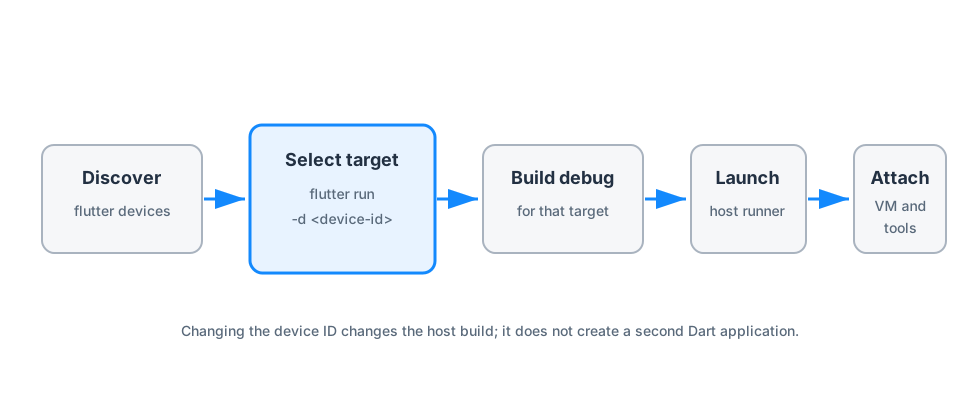
Figure 2 — -d selects the build and host runner; it does not select a different Dart codebase.
What flutter run does
At a high level, the command:
- resolves packages and project configuration;
- selects the requested device and target platform;
- compiles a debug build by default;
- invokes the target’s host build and launch path;
- attaches development services for logs, reload, restart, and debugging.
The exact compilers and artifact formats differ by target. The stable interface you use is the Flutter command plus a target ID.
5. Run the Same Source on a Second Target
Stop the first run with q in its terminal, or leave it running and open another terminal in the project root. Then choose another ID reported by flutter devices:
flutter run -d macosor:
flutter run -d emulator-5554You should see the same titles and reading data. The layout may differ because the available width differs. The surrounding host also differs:
- a browser supplies a tab, URL, browser security model, and web input behavior;
- a mobile operating system supplies an activity or application lifecycle, touch input, permissions, and system navigation;
- a desktop system supplies a resizable window, keyboard and mouse input, menus, and filesystem conventions.
Flutter shares application code across those environments; it does not erase their contracts.
Web’s development boundary
Chrome and Edge are integrated development targets. To open the app manually in another browser, Flutter can expose a local server:
flutter run -d web-serverOpen the printed URL in the browser. Debugging support in this mode is more limited than the integrated Chrome or Edge targets.
Flutter web has supported hot reload by default since Flutter 3.35. When a code change cannot be applied, the tool can require a hot restart. Chapter 4 explains how to choose between reload, restart, and full relaunch.
6. Run Is Not Build, and Debug Is Not Release
flutter run answers “launch the application on this development target.” It uses debug mode unless you request another mode.
flutter build <target> answers “produce a target-specific artifact.” Examples include:
flutter build web
flutter build apk
flutter build appbundle
flutter build ios
flutter build macos
flutter build windows
flutter build linux
Not every command is valid on every host, and release workflows add signing, store, hosting, packaging, and security decisions. Chapters 91–93 own those production concerns.
For now, use the modes for their intended evidence:
| Mode | Primary use | Important warning |
|---|---|---|
| Debug | Fast development, assertions, debugger, hot reload | Do not use it to judge production performance. |
| Profile | Performance measurement with tracing support | Measure representative work on an appropriate physical device when platform guidance requires it. |
| Release | Optimized delivery artifact | Debugging services and assertions are not equivalent to debug mode. |
One source tree producing multiple artifacts does not imply byte-for-byte equivalence. Web output, an Android App Bundle, and a desktop executable have different packaging and runtime boundaries.
7. Failure Modes That Look Like Flutter Problems
“No supported devices connected”
Symptom: flutter run has nowhere to launch.
Cause: the SDK may be healthy, but no configured browser, running emulator, simulator, desktop target, or authorized physical device is visible.
Correction: run flutter devices, then use flutter doctor -v and the target-specific setup guide. Fix discovery before changing application code.
More than one device is available
Symptom: Flutter asks you to choose, or the IDE launches the wrong target.
Correction: pass -d <device-id> explicitly. Automation should never depend on an interactive device choice.
The platform folder is missing
Symptom: the SDK is capable of a target, but this project has no host scaffold for it.
Correction: from the project root, run flutter create . --platforms=<platform> and review the generated changes.
The interface overflows on a narrow target
Symptom: the desktop layout looks fine, while a phone shows a yellow-and-black overflow warning in debug mode.
Cause: shared code reused a fixed layout, not an adaptive layout.
Correction: derive structure from available constraints, as _ReadingDashboard does. Cross-platform source sharing does not waive layout constraints.
Platform-specific imports break web compilation
Symptom: code using dart:io or an unsupported plugin compiles on mobile but fails or throws on web.
Cause: the code crossed a platform boundary without a supported abstraction.
Correction: check package platform support and use conditional imports or a platform-capability abstraction where necessary. Chapter 73 owns conditional imports and feature detection.
8. Practice: Prove Portability Instead of Assuming It
Use your Reading Companion project to produce evidence for two targets.
Task
- Run
flutter devicesand record two available device IDs. - Launch the app on the first target with an explicit
-dvalue. - Change
The Pragmatic Readerto a book title of your choice and apply the change. - Launch or reload the second target.
- Resize any resizable target across the 720-pixel breakpoint.
- Record one behavior that is shared and one host behavior that differs.
Expected evidence
- Both targets render the same reading data from
lib/main.dart. - Narrow space shows one column; wider space shows two.
- The host container differs—for example, browser tab versus desktop window.
- You can name the exact device IDs and commands used, rather than saying “Flutter ran everywhere.”
Stretch task
Create a project containing only web and your current desktop platform. Compare its top-level platform folders with a default application project. Do not copy host folders manually; use flutter create --platforms so generated configuration stays internally consistent.
You can now create, select, and run a target without confusing shared source with a universal binary. Chapter 3 turns the generated file tree into a maintenance map: which files belong to Dart, Flutter tooling, dependencies, assets, tests, and native hosts.